
Apr 2, 2026 — In-Store Play, Events, Tools, WPN 101, EventLink
Simplify Multi-Store Event Management with Segments
Manage events across multiple stores with Segments in EventLink. Save time, reduce duplicate work, and keep your store calendars aligned from one place.
Managing a network of stores comes with unique challenges, but it also comes with unique opportunities. Segments are a new way to make multi-store event planning faster with more flexibility; it's a system designed to reduce duplicate work, keep calendars consistent, and help store teams focus on what matters most: bringing players together.
Segments let store owners create a hierarchical relationship across their stores, so you can schedule the same event across all stores, some stores, or just one store, manage access intentionally, and switch between calendars from the same UI.
What Are Segments?
Segments are a way for store owners with multiple locations to manage all or a subset of their locations as a group.
Instead of creating and maintaining events one store at a time, segments allow you to act across multiple locations at once, while still preserving control at the individual store level when you need it.
With segments, you can:
- Create events that apply to multiple stores at the same time.
- Control which users can view and manage specific groups of stores.
- View events across locations in a unified calendar.
Whether you're coordinating a shared event series or simply want a clearer view of what's happening across your stores, segments are built to support how multi-store organizations actually operate.
Where to Find Segments
When segments are enabled, a Segments tab appears under Store Settings.
From there, you'll see:
- All segments you've created
- A default "All Stores" segment that automatically includes every location
You can preview which stores belong to a segment at any time or edit segments as your store network evolves.

Creating Segments That Match Your Store Network
Segments are flexible by design, so you can group stores in ways that make sense for your organization.
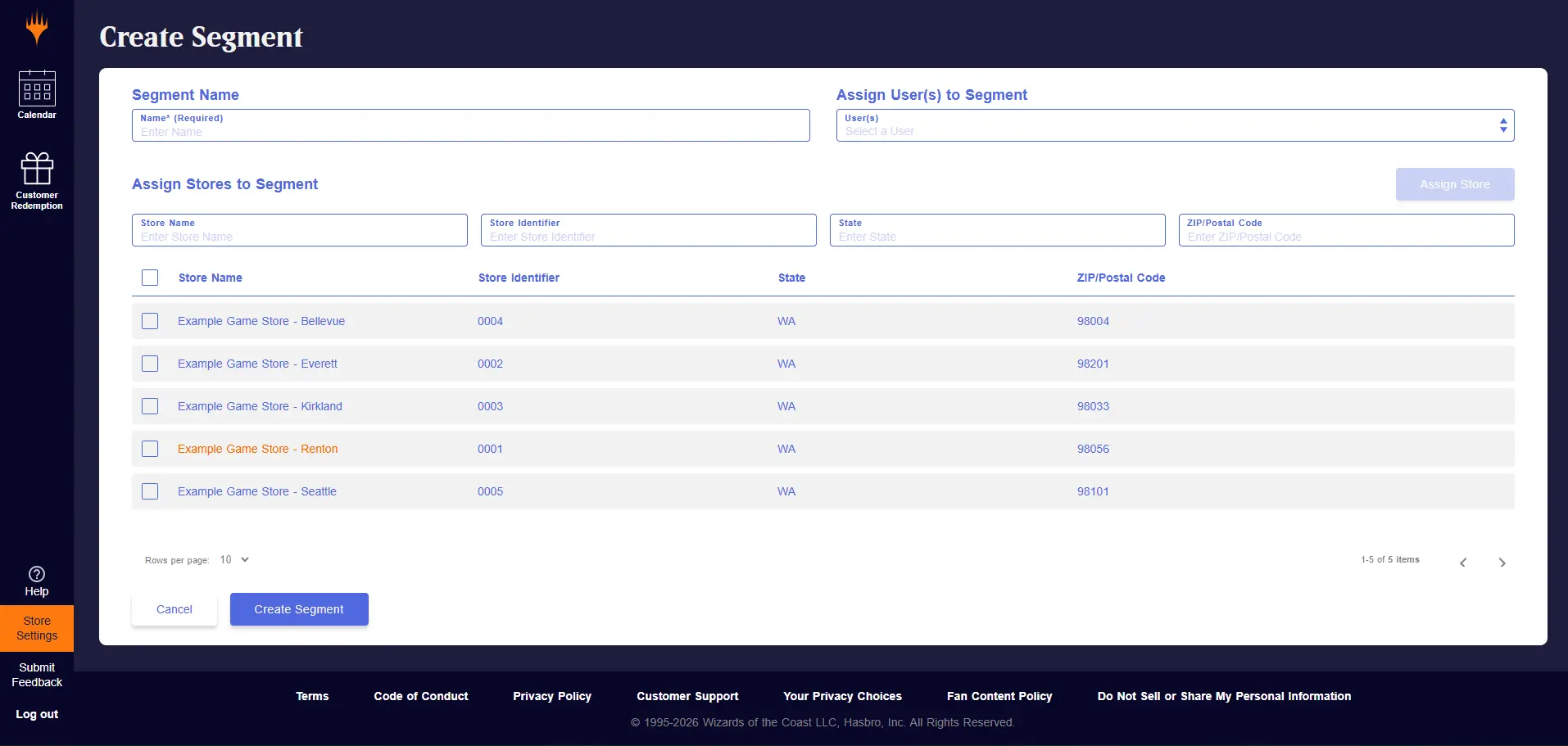
When creating or editing a segment, you can:
- Select exactly which locations belong in the group
- Filter stores by name, identifier, state, or postal code
- Assign stores with a single action
- Assign users who should have access to that segment
Only users assigned to a segment can view and manage its stores, helping keep access clear and intentional as your team grows. They do not have to be part of the parent store; they can be assigned as store admins as usual and have visibility into that store only, not the segment. Assigning a Corporate Admin or Owner grants access to the segment.
Store Roles That Support Segments
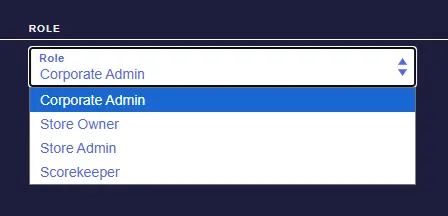
To support multi-store management, several new store roles are available. These roles only apply to stores that have secondary locations and are designed to give teams the right level of access without adding unnecessary complexity.
Corporate Owner
Assigned by a WPN admin, the Corporate Owner role provides top-level visibility and control.
Corporate Owners can:
- Perform all Store Owner actions for every secondary store
- Create and manage segments that include any combination of secondary stores
- Set Corporate Admins
- Control which segments Corporate Admins can access
Corporate Admin
Corporate Admins are designed for day-to-day management across assigned locations.
Corporate Admins can:
- Perform all Store Admin actions for each store they're assigned
- Manage events and calendars within their permitted segments
One Calendar, Many Views
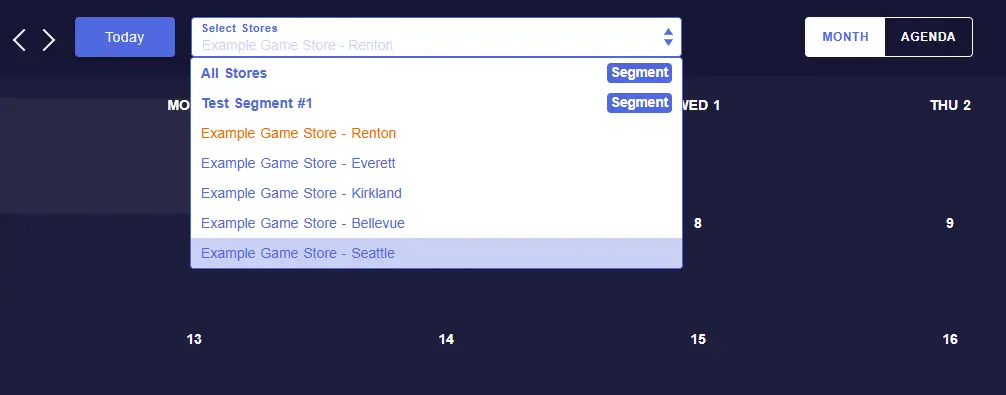
Users with segment access will see a Select Stores dropdown on the calendar.
By default, the primary (corporate) store is selected. From there, you can switch between individual secondary stores or any segment you have access to.
Your selection controls which events appear on the calendar and the store(s) where new events are created.
Viewing a Single Store
When a single store is selected, the calendar shows only that store's events, and event creation works exactly as it does today.
No new steps. No new rules.
Viewing a Segment
When a segment is selected, the calendar shows events for every store in that segment. Shared events display a store count, showing how many locations include that event.
Selecting the "All Stores" segment shows every event across your entire store network in one place.
Example:
The highlighted (orange) store represents the primary store. Secondary stores appear below it, and available segments appear above it in the dropdown.
Creating Events at Scale (Without Losing Flexibility)
Segments make it easy to create events across multiple locations while still giving you control.
Creating an Event for a Segment
When a segment is selected:
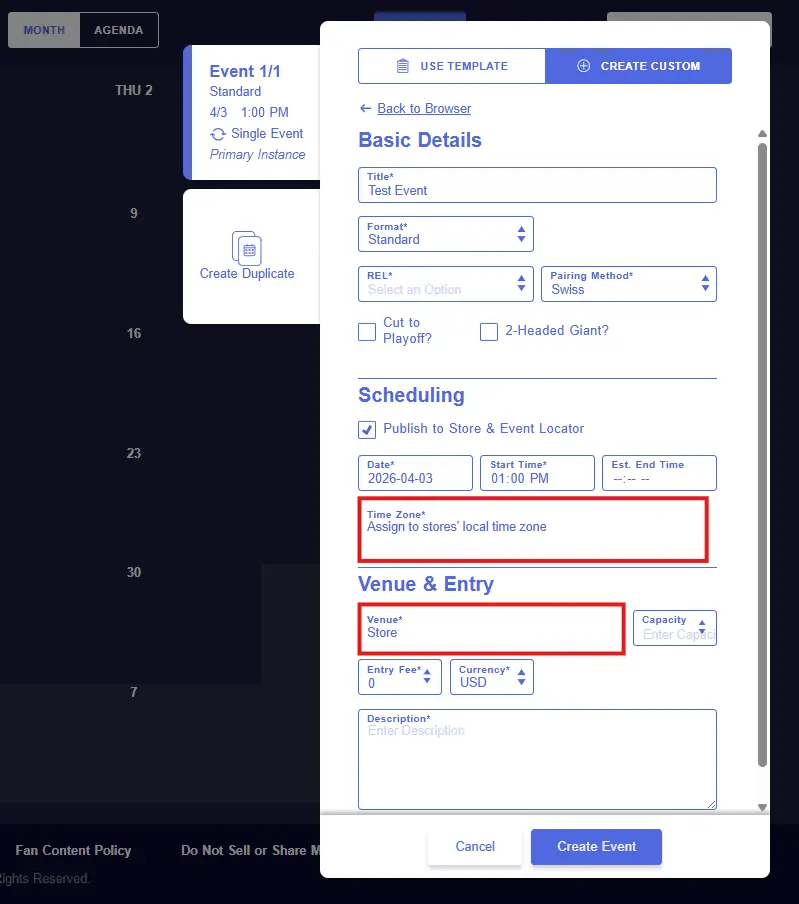
- Only templates shared by all stores within the segment are available
- Time zones are set automatically per store
- Venue selection is disabled
- Recurring events aren't currently supported
When you select "Create Event," an event is created for every store in the segment, and all events are automatically linked for streamlined management.
Creating an Event for a Single Store
When an individual store is selected, only that store's templates appear, events are created for that store only, and existing behavior is unchanged.
Managing Segmented Events
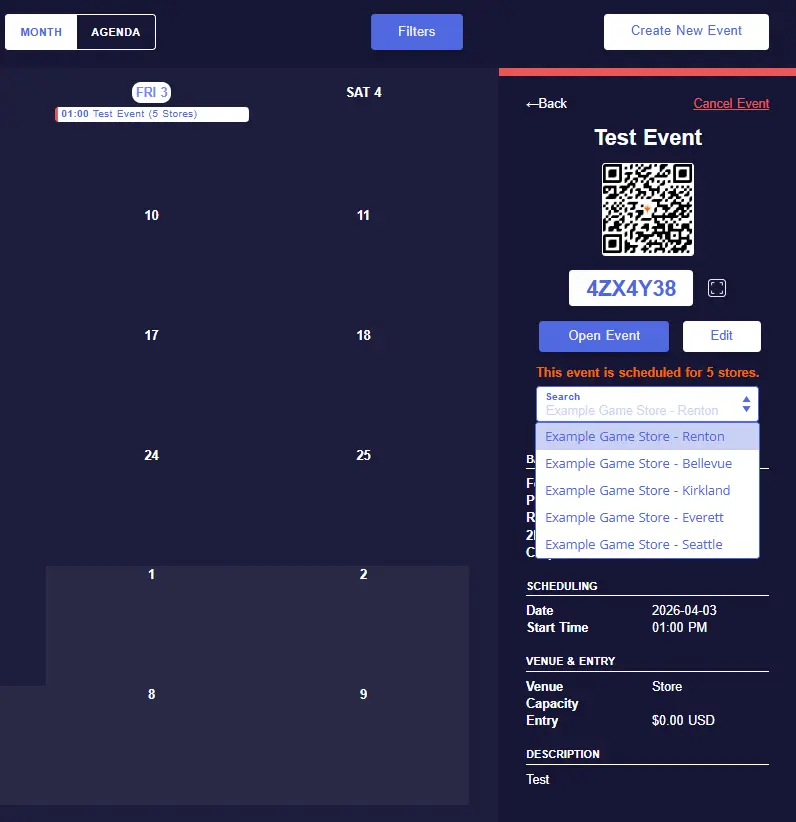
For events created through a segment, a store selector appears that allows you to switch between stores, view QR codes and short codes, and open the public event page for the selected store.
Everything you need, without leaving the event.
Editing or Canceling Events, Your Way
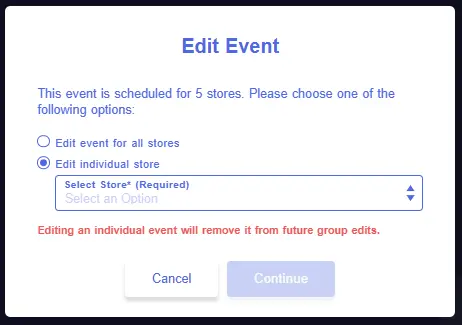
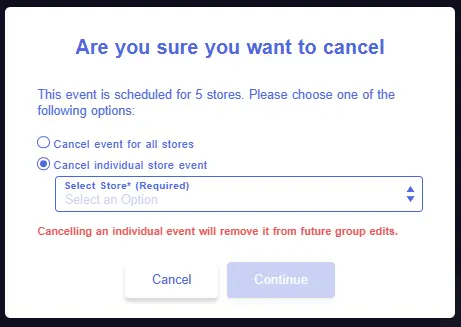
When editing or canceling a segmented event, you choose how far the change goes.
- Applying to all stores updates or cancels the event for every store in the segment.
- Applying to an individual store updates or cancels the event for one store and removes it from future group edits.
Stores with the same owner across multiple locations will be set up with store segment functionality when additional locations are onboarded into WPN. If you manage multiple locations and don’t have this set up, you can request access using this form.
The Definitive Guide to Wizards EventLink

From setup to success, run every event like a pro.